What Happens Between Pressing Play and Seeing the First Frame
What happens between pressing play and the first frame? Follow the app, stream, and device handoffs to choose a useful check when playback stalls.
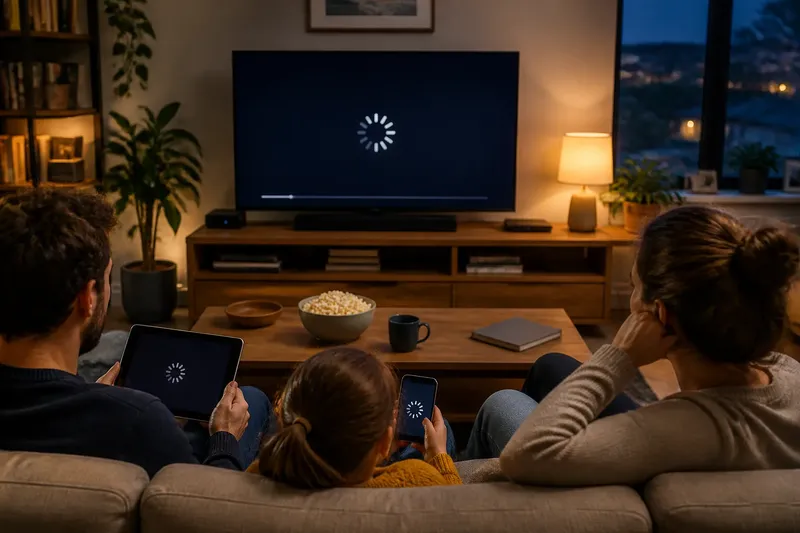
The common mistake with a slow streaming startup is to treat every pause after pressing Play as the same problem. That can send you changing a device or connection setting while the service is still selecting a playable version. What happens between pressing play and seeing the first frame is a chain of handoffs, and the visible symptom can help you choose a sensible next check.
What does the Play button set in motion?
A tap on Play sends the service a request for the programme or episode you selected. The request may also include your audio and subtitle choices, so the service can prepare a version that suits both the selection and the player.
The service checks that the title is available to your account, then identifies media the device can play. A programme can have different video formats, language tracks, subtitle files, or edits. The app and service need to settle on a combination that works for that session.
While these exchanges happen, you might see a spinner, a black screen, a preview image, or an error message. A spinner often means the app is waiting for information or media; a black screen can also appear while the player prepares video or the display changes modes.
Wait briefly before pressing Play again. Repeated taps can create overlapping requests and make it harder to tell which response the screen is showing.
How does a service select and deliver a playable stream?
Streaming services can deliver media in smaller pieces from systems distributed across different locations. A content delivery network, or CDN, helps route those pieces from a location suited to the viewer’s connection.
The service may choose among several versions of a programme. A television, phone, and older streaming device can differ in screen, connection, and video-format support, so they may not receive the same combination of media.
The player may begin with a version it can receive promptly and adjust as delivery conditions become clearer. A modest opening image can appear sooner than a higher-quality version that takes longer to prepare; the picture may then sharpen or soften as playback continues.
If one title stalls while others in the same service start normally, the title, its available versions, or the app’s handling of it may be involved. If several titles behave alike, look for a factor they share, such as the device or connection.
Why can the first frame take longer than later playback?
Before showing the first frame, the player needs enough media to begin, must interpret that media, and then has to display it. Video often arrives in chunks, and the player may need an initial chunk plus information that coordinates the picture and sound.
The player also prepares a buffer, a short reserve of media intended to help playback continue through brief changes in delivery. Meanwhile, the device decodes compressed video into images the screen can show, opens the audio track, and positions subtitles if they are enabled.
A still image or preview may appear before the main stream is ready. It can make the wait less obvious, but it does not necessarily mean the programme itself has started.
Say you choose a drama on a television while another device is using the home Wi-Fi. The title page opens, but playback waits; you then try the same title on a phone using a separate mobile connection, and it starts. That comparison suggests the television’s route to the stream deserves attention, though it does not identify one cause by itself.
Which part of the wait should you check first?
Match your next check to the pattern you can observe. Start with the title or app if one programme is affected, compare the connection if several services stall, and look at the device if playback works elsewhere.
- Check the title and app: If one programme stalls but another title in the same service starts, return to the affected title page, confirm the episode, and try the title again. If both titles stall, compare another service before deciding the problem is specific to that programme.
- Compare the connection: If several titles or apps pause before starting on the same device, try the same service on another device connected to the same home network. If both devices stall, check whether other household activities are using the connection; if only one device stalls, examine that device instead.
- Check the player device: If the same title starts on another device but not on a television, streaming stick, or game console, close and reopen the app and check for app or system updates. If the issue remains limited to that player, contact its maker or the service with the details.
- Read the exact error: If an error code appears, write down the message before changing settings and consult the service’s help page. If there is no code, record whether the screen shows a spinner, black image, or sound without picture, then choose a comparison that matches the symptom.
- Change one variable: If you are about to restart the router, switch devices, and alter picture settings together, pause and choose one action first. If that action changes the symptom, keep the observation; if it does not, restore any setting you changed and try a different targeted check.
- Compare like with like: If you test another device, keep the title and service the same and note whether both devices use the same network. If the connection also changes, treat the result as a clue rather than a clear distinction between device and network.
Make one change at a time so you can see what, if anything, changes with it.
What can the symptoms tell you before you change settings?
A long pause followed by smooth playback suggests the player eventually received and prepared enough media to start. Repeated pauses after the first frame point to an ongoing delivery or decoding difficulty rather than startup alone.
A spinner that never clears may mean a request is not completing. An error message can offer a more specific clue, so note its exact wording or code before trying a fix.
Compare the same title on the same service where possible. A phone on mobile data and a television on home Wi-Fi differ in several ways, so their results cannot isolate a single cause.
What should you know before changing playback settings?
Playback settings can affect what the service requests and how the device displays it, but they are not the first place to look for every startup delay. Check whether the symptom follows one title, one app, or one device before changing options. If one setting appears connected to the problem, change only that option and watch for a clear difference.
Why does picture quality change after playback begins?
Many players adjust the stream as delivery conditions change. The image may begin at a lower quality and become sharper when the player can use a different version, or soften if delivery becomes less steady.
Can subtitles or audio choices affect startup?
Audio and subtitle choices can be part of the requested playback combination. If a problem appears only with one track, try the default option once; if startup changes, note the track choice, and if it does not, restore your preferred option and check another part of the playback path.
Does a black screen always mean the stream has stopped?
No. A television may briefly switch picture or audio modes as playback begins, and an app may show black while a stream loads. If sound continues without a returning image, or black persists across titles, record that distinct symptom rather than treating it as an ordinary startup pause.
When should you contact the service or device maker?
Contact support if the problem continues after an app restart and a comparison with another title or device, especially when an error code appears. Share the device model, app name, title, exact message, and checks you already made; do not share passwords or private account credentials.
How can you choose a sensible next move?
Imagine your television stalls on one episode, while another title in the same service starts normally. You confirm the episode selection, close and reopen the app, and try the stalled episode again; it still stops at the spinner. You then play that same episode on a second device using the same home network, and it starts there. The resulting comparison points toward the television or its app rather than the title or shared connection, so the next useful action is to check that player’s app and system updates before contacting support.
For a practical mental model, follow the request from your selection, through the service’s choice of a playable stream, to delivery and decoding on the device. When the first frame is slow, identify which handoff has not visibly completed. That is the useful starting point for understanding what happens between pressing play and seeing the first frame, without resetting unrelated parts of your setup.